Look beyond the name.
Check the sender’s full email address. A familiar display name, logo or polished message does not prove an email is safe.

If you have computer problems...We Have the SOLUTIONS
Business & home IT support · South Florida (305) 442-0136 ↗
Practical guidance · Home & business
Safer habits. Stronger protection.
A moment of caution can protect your inbox, your information and the people who depend on you. Explore practical advice from Computer IT Solutions—starting with safer email.
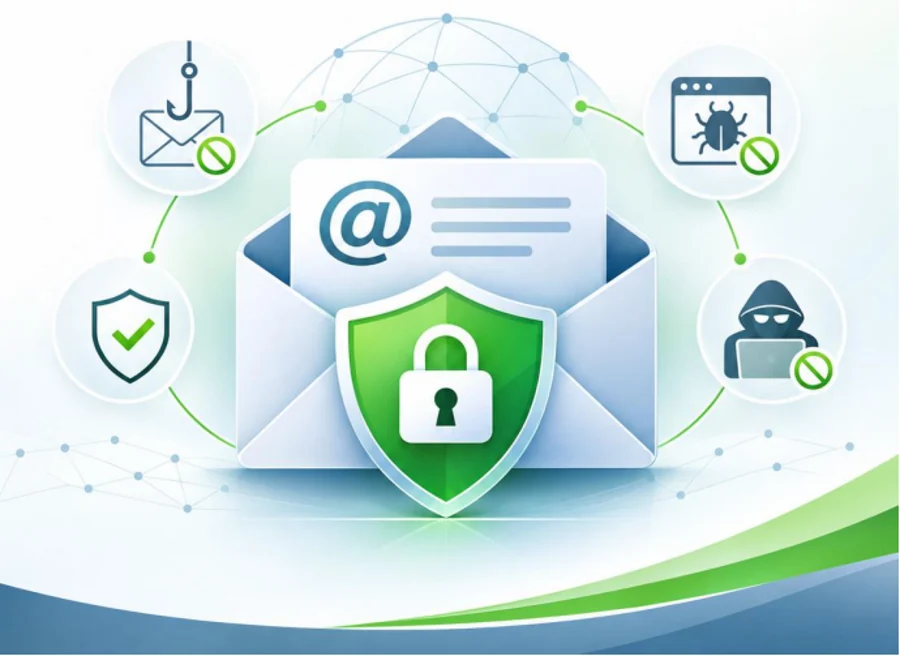
Free resource · Email security
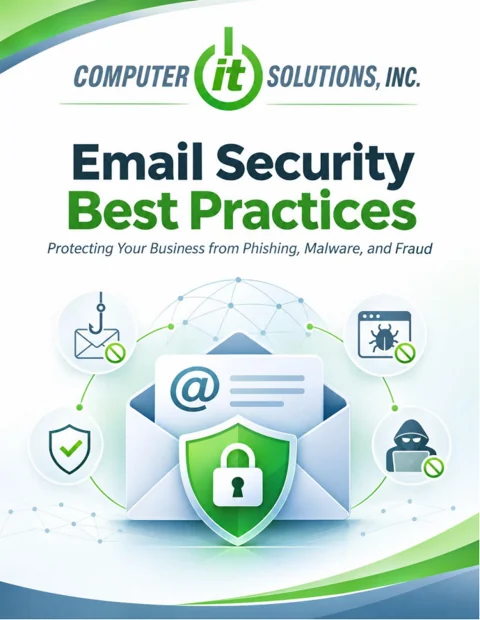
Our Email Security Best Practices guide helps employees, business owners and home users recognize phishing, handle attachments carefully and respond quickly when something seems wrong.
Keep a copy handy, share it with your team or print the checklist for your workspace. These habits help reduce the risk of malware infections, stolen credentials and payment fraud.
PDF · 5 pages · Approximately 301 KB · No sign-up required
Start with these habits
Check the sender’s full email address. A familiar display name, logo or polished message does not prove an email is safe.
Question unexpected links and attachments. Use a trusted bookmark to sign in, and never enable macros or bypass security warnings at an email’s request.
Before changing bank details or sending an unexpected payment, call the person using a number you already trust—not one supplied in the message.
Use a strong, unique password for each account and a reputable password manager. Enable multifactor authentication wherever available. Never share verification codes or approve sign-in prompts you did not initiate.
Our password protection service can help you build better account habits.
Verify unexpected document-sharing invitations through a separate trusted channel. Do not enter your password into a suspicious document-access page. Reject unsolicited requests to install software or grant remote access; contact your regular IT provider directly.
Stop interacting with the message, website or file and contact IT immediately. Explain whether you opened an attachment, entered a password, approved a prompt or sent money. Follow IT’s instructions and preserve evidence rather than deleting files or hiding the mistake.
Before you click
If you cannot answer confidently, pause and verify through a trusted contact method.
A growing resource library
We’ll keep adding practical best practices for homeowners and businesses. Return here for new guides that make everyday technology safer and easier to manage.
Safer devices, home Wi-Fi, family account security and protecting important personal files.
Employee security habits, access to shared information, backups and everyday technology care.
This guide supports safer habits; it does not replace your organization’s security policies or professional incident response. No single precaution eliminates every risk.